
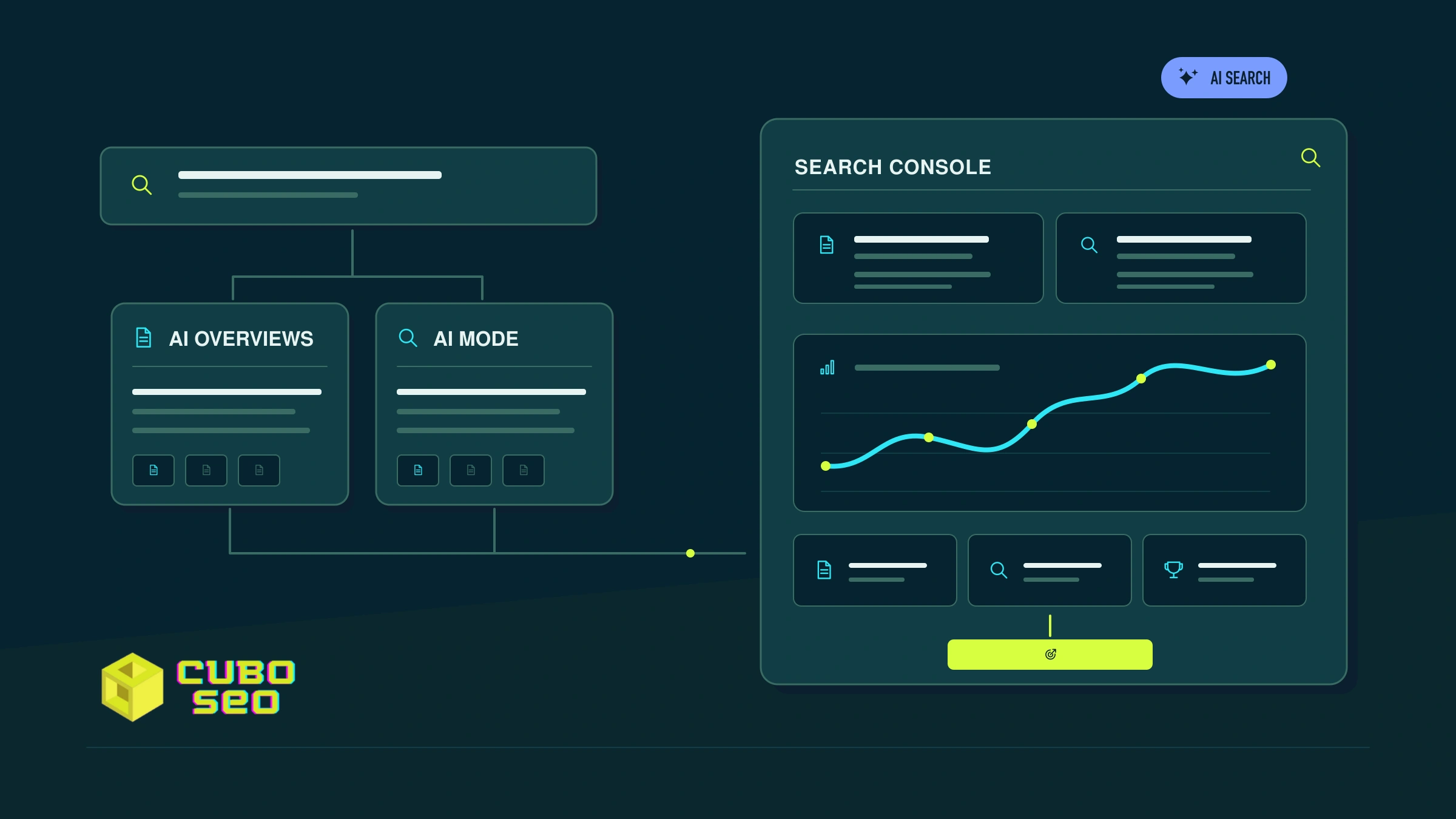
Search Console now lets you observe impressions for pages appearing in AI Overviews and AI Mode. The generative AI report for Search helps identify which URLs receive exposure and how that visibility changes by country, device and date. Google announced the report on June 3, 2026, and stated that its worldwide rollout was completed on August 31. Google Search Central
This is a step forward for marketing, SEO and digital leadership teams that need to track their site’s presence in answers generated within Google. However, the report does not attribute results to a specific query or show all the usual performance metrics. Understanding that scope helps turn its data into useful decisions without treating it as a complete measure of AI’s impact on the business.
What Search Console’s generative AI report measures
The report brings together impressions of links to your site that appear in Google Search’s generative features. The Search view includes AI Overviews and AI Mode. Data for Google Discover’s generative features is available in a separate report, and active Search Labs experiments are not included. Search Console’s documentation describes the available features and dimensions.
The central metric is the impression: an occasion when a link to a page on your property is shown in a generative Google Search experience. This lets you identify signals of visibility and track how they evolve. On its own, it does not mean that someone clicked, visited the page or completed a conversion.
The report complements the general performance report. Google states that data from these experiences is also included in overall Search performance; the dedicated view lets you examine generative impressions separately from the full set. It is therefore useful to consult both reports: one provides search performance context, while the other focuses on visibility in generative features.
Where to find it
Open the verified property you want to analyse in Search Console and look for the Generative AI performance (Search) report within the search performance options. In the English interface, it may appear under the name Generative AI performance report (Search). Select a period and use the tabs above the table to switch dimensions: pages, countries, dates or devices.
The report has rolled out globally, but this does not guarantee that every property will show data. It may be missing or empty if the site has not yet received enough impressions in generative features, or if it has been excluded from them. In that case, review the site’s eligibility and check the report again later.
How to read impressions, pages, countries and devices
Impressions: observe the trend
Start with the chart and choose a period broad enough to reduce the influence of daily fluctuations. Compare intervals of equal length—for example, one month against the previous month—and check whether changes coincide with a major site update, a content change or a shift in the market.
The chart aggregates impressions by property. If two links from the same site appear within a generative experience, the chart total counts a single impression for that property. The table, by contrast, can show the pages separately. As a result, the chart total and the sum of the table rows do not always match.
Pages: identify which URLs receive exposure
The Pages dimension groups data by URL. Use it to locate the pages with the most impressions and identify others starting to appear. In general, Search Console assigns data to the canonical URL, so the value may appear under a page’s preferred version rather than a duplicate or alternative URL.
Treat these rows as a signal to investigate. If a guide gains impressions, check whether its trend also changes in conventional web search and whether its visits contribute to business objectives. A page with many impressions in the report is not necessarily the one generating the most traffic or revenue.
Countries and devices: find differences between segments
The breakdown by country shows where the searches that generated impressions originated. It helps compare markets and identify whether a page has visibility in the countries that matter to the business. Review this data alongside the language, offer and content available for each market.
The Devices dimension separates desktop, tablet and mobile impressions. If you notice a marked difference between devices, use it to guide a review of the pages and the experience they offer. The data does not explain why the difference exists: to find the cause, you will need to compare it with other metrics and changes on the site.
Dates: consider granularity and time zone
You can group the data by days, weeks or months. Report dates use Pacific Time (PT), so they may not match the daily cut-off times in your internal reports exactly. The most recent data may also be preliminary; Search Console marks it with a dotted line because it could still change.
Limitations to consider
The dedicated report focuses on impressions. It does not show a breakdown of clicks or CTR for AI Overviews and AI Mode, or a query dimension to identify the search behind each impression. Nor does it clearly separate impressions from one feature and the other. Do not use it to calculate an AI click-through rate or attribute a page’s visibility to a specific query.
The report measures Google Search’s generative features, rather than your brand’s presence on every AI platform. It is also not a measure of rankings, share of voice, brand mentions, answer quality or conversions. Each of those questions requires additional data or methods.
Finally, appearing in the report does not guarantee future visibility. Google explains that fundamental SEO practices remain relevant and that a page must be indexed and eligible to appear with a snippet in Search; meeting those requirements does not guarantee that Google will crawl or display it either. The official guide to Search’s generative features recommends focusing on useful content and the fundamentals of crawling and indexing.
How to combine it with conventional search
Compare the generative AI report with the Performance report (Search results), which brings together web search data. Keep the same period and, where it helps answer a specific question, review pages, countries and devices in both. The comparison helps identify whether a URL gains exposure in generative experiences while its overall performance changes; it does not, on its own, demonstrate that one change caused the other.
Then consult your analytics tools to understand how visits and conversions for those pages evolve. Treat the data as complementary pieces: Search Console helps observe impressions and performance in Google Search; site analytics helps study what happens after the visit. Do not assume a conversion came from AI Overviews or AI Mode if your data cannot attribute it to that feature.
Which decisions to make from the data
Start with pages that show a clear trend or have strategic importance for the business. If their impressions increase, retain that baseline and examine their overall performance, visits and conversions. If they fall, review the affected period, country and device before making changes; an isolated drop is not enough to diagnose the cause.
If a priority page does not appear in the report, first verify that it can be crawled and indexed and is eligible to appear in Search. Then check that it clearly addresses the audience’s need and provides useful information. Avoid rewriting content simply to chase an impression count: use the signals alongside business objectives and the SEO strategy.
For an assessment that connects Search signals with your site’s SEO, explore Cubo SEO’s SEO service.
Frequently asked questions
Does Search Console show clicks from AI Overviews and AI Mode?
The dedicated report shows impressions and the available breakdowns, rather than a report of clicks or CTR by feature. To study organic clicks, also consult overall Search performance and site analytics, bearing in mind that this data does not necessarily identify which feature generated each visit.
Can I identify the query that triggered an impression?
Not from the generative AI report: it does not provide a query dimension. You can review queries in the general search report for context, but you cannot directly attribute a generative impression to one of them.
Can I separate AI Overviews from AI Mode?
The dedicated report includes impressions from both features, but it does not offer a specific breakdown to compare their results independently.
Why can’t I see the report, or why is there no data?
Although Google announced the worldwide rollout, a property may show no data if it has not received enough generative impressions or has been excluded from these features. Check that you are viewing the correct property and review its eligibility in Search.